
Vanco EV4KWHDMI
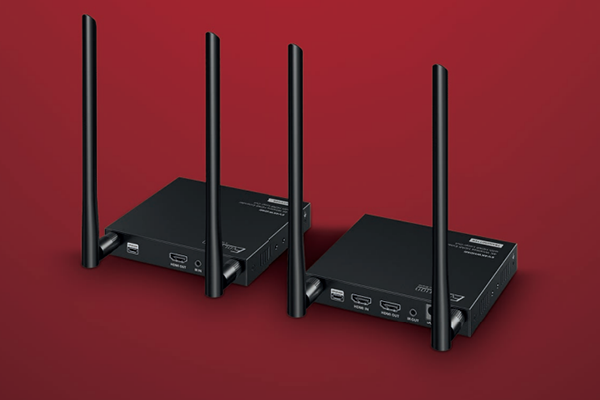
Vanco’s Evolution line of solutions has debuted a 4K wireless HDMI extender. Stephen Dawson checks it out to see how it stacks up.
Quite a few years ago, I had dinner with an acquaintance. Amongst other things, he was keen to show me his home theatre room. This was a little before the days of HDMI, yet he nonetheless had a ceiling-mounted home theatre projector to beam the image onto the projection screen, and a stack of electronics, including a home theatre receiver and DVD player.
ADVERTISEMENT
The room had been newly built, and he’d had the forethought to have built-in video cabling to keep things neat. The problem was, from my point of view, that the cable was a single composite cable.
A composite cable was, of course, analogue. And even then, it was the second-worst way of getting video from a source to a display (the RF encoder in VCRs was the worst). Composite video required the three components of a video signal – the luminance signal and the two colour-difference signals, which were carried by a DVD – to be mixed together in such a way that they inevitably interfered with each other, producing obvious on-screen artefacts. Had he asked me back then, I would have strongly recommended putting component video cables into the same cavities.
But even if he had, and had accepted my recommendation, the advent of HDMI would still have left him with quality restrictions, absent unsightly cabling or expensive replastering.
And even then? 1080p-capable HDMI would have probably needed to be replaced for UltraHD.
But these days, he wouldn’t need any replastering. He could upgrade his projector to an UltraHD model and attach near to it the RECEIVER element of the Evolution EV4KWHDMI 4K Wireless HDMI Extender with HDMI Loop-Out. The TRANSMITTER element could plug into the HDMI video output of his upgraded home theatre receiver.
No replastering required.
What it is
That’s only one potential use case. The box of the Evolution EV4KWHDMI 4K Wireless HDMI Extender with HDMI Loop-Out unit (hereinafter called the Evolution HDMI Extender!) tells us what this unit is: “A perfect plug and-play solution for applications where a cable cannot be run, such as a TV mounted above a mantel or outdoors on a patio.”
To put it another way, instead of running a HDMI cable from one point to another, you can use the Evolution HDMI Extender. That’s what “plug and play” means.
The system consists of two main units: Two compact metal boxes. One is a transmitter, the other a receiver.
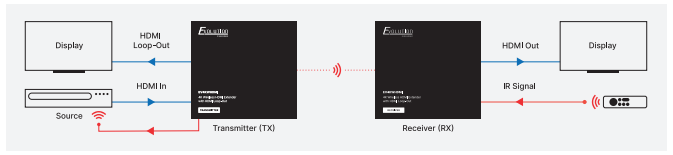
The transmitter has a HDMI input and output. That output is the “HDMI Loop-Out” mentioned in the full name of the system. Essentially, it simply reflects the input. You may find this useful to feed a separate monitor or TV screen.
I guess that in theory, you could place the Transmitter in between the source and a home theatre receiver, sending the video wirelessly to the screen or projector and the audio to the receiver. But the specifications only offer audio support for two-channel LPCM up to 48kHz. I no longer have a home theatre receiver (I’m pretty much a high-end stereo guy these days), so I’d have to take their word for it. Connections should be source to receiver, then receiver output to the Evolution HDMI extender for connection to a video display.
As for video, the specifications say that there is support for UltraHD (3840 by 2160 pixels) at 24, 30, 50 and 60Hz, 1080p at 50 and 60Hz, 720p likewise at 50 and 60Hz, and a few computer-ish resolutions (1920 by 1200, 2560 by 1440, 2560 by 1600).
Not mentioned in the specs are colour-depth and colour resolution support: 10-bit or 12-bit colour, 4:4:4 or whatever.
While in one sense the system simply replaces a notional HDMI cable, it offers a little more capability. Included in the box – in addition to small wall wart power supplies for the transmitter and receiver – are an IR blaster and an IR receiver with extension cables. These plug into the units – IR receiver into the transmitter, IR blaster into the receiver – so that your remote controls can operate as far as the video can transmit. That would be particularly useful in that TV-on-the-wall-on-a-patio situation.
The receiver has just one HDMI output for plugging into the display device.
The transmission occurs in the 5GHz band, with four channels available in case something in your area is occupying some of that space. A button on the front of each unit allows the changing of the channels.
Both units have three LEDs on the front. The blue one shows power on, an amber one shows that the two units are connected, and another amber one is illuminated when a video signal is being successfully transmitted and received. The LEDs are reasonably bright, so you should consider the units’ orientations in a dark theatre room.
Setting up
It’s hardly worth having a separate section for this. You just plug the transmitter into the video output of a device (I plugged it directly into the output of my Oppo Ultra-HD Blu-ray player). You plug the receiver into your display device (my LG UltraHD OLED TV). The two wall warts are plugged into the units. If necessary, the IR devices (I didn’t use those).
And that’s it. There are no on/off switches. Once the power was plugged in, the units connected for me in twenty seconds.
In use
The main difference you’ll likely notice when using the Evolution HDMI Extender, when compared to a HDMI cable, is a little bit of waiting while the units connect and sync on receipt of a signal. During that time, the display shows a message from the receiver unit: “Reminder: Please check the TX input signal.”
That is: check what’s plugged into the transmitting unit: is a signal coming through, is it compatible? Most times it’s just a matter of waiting for the sync.
For example, right now I have an Australian DVD playing with the output resolution of the Oppo player set to “Source Direct”. That means the signal is coming through at 576i50. The information displayed on my TV confirms that. When I switch the player on the fly to 1080p50 output, there’s a flash of screen noise, the screen goes blank, then the “Reminder” message is shown, soon to be replaced by the DVD playing again, now at 1080p50. The whole process took a little under eleven seconds.
I removed that disc and put in the first disc of the first season of HBO’s True Detective. This runs at 1080p24. The sync was lost three times en route to the disc menu, presumably because of breaks in the signal from the player as the disc switched through different warning screens. But it soon had everything going nicely. From the main menu, there were no further sync breaks.
The Blu-ray player’s output was still set to 1080p, so I switched it to “Auto” while an episode was playing. “Auto” output means that the device sets itself to the preferred resolution of the HDMI “sink” – the device into which the output is plugged.
Not a problem. The output switched to 2160p and everything had synced up again in less than ten seconds.
You will have noted that I started with the output set to 576i50, the native resolution of most Australian DVDs. That’s a resolution not mentioned in the specifications as a supported one. I checked with a 1080i50 Blu-ray as well and confirmed that that, also, was supported.
Does it matter? I’d say yes. Some Blu-ray players handled 50i deinterlacing better than some displays, and some displays do it better than the players. In the latter case, you’ll likely want to be able to send the 576i or 1080i and let the TV or projector do the job. The Evolution HDMI Extender supports that.
Now, on to UltraHD Blu-ray discs.
I started with Yesterday, which features 2160p24 video, of course, and HDR. HDR means 10 bits of colour depth instead of the 8 bits of DVD and regular Blu-ray. That is, a 25% increase required in bandwidth. With a direct cable connection to the TV, once the disc was spinning the TV reported the proper resolution, the HDR encoding and a Rec.2020 colour space.
Through the Evolution system, the movie appeared to play very nicely – it looked fine – but the TV no longer reported HDR or the extended colour space.
I had all the settings of the Blu-ray player on “Auto”, so I set the Oppo to “force” the HDR signal through, regardless of the capabilities of the display device. I switched that on. There was no change to the picture.
To really test out capabilities, I whipped out the UltraHD Blu-ray version of Gemini Man. This runs at 2160p60 – it’s a High Frame Rate video – and has the picture Dolby Vision encoded. Initially, I had a problem due to the sync delay: the disc started up in the multilingual copyright notices (I think), presumably because that’s where I stopped the disc when last I played it. The player gives me the option of resuming in the same place or starting from the beginning… but I couldn’t see that message because the units hadn’t synced yet. Obviously, not a major problem, but it’s worth remembering that you may miss some seconds of video in which action is required.
Back to the disc. Eventually, I got through the copyright messages and went back to the main menu. The film looked, as usual, stunningly sharp (in addition to smooth motion, HFR tends to produce a subjective sense of even greater than usual 4K sharpness). The image looked extremely good, but seemed to lack a little of the depth I was used to. Hitting the “Info” button on the TV showed that the Dolby Vision encoding was not reaching the TV.
I’m not sure that gamers would find using this system very satisfying. The materials with the system say that it offers low latency. The specifications, however, specify latency at 130ms. I measured it at 126ms with a 1080p60 signal. Latency is, of course, the time between when something appears in the signal fed to the display input and when it appears on the screen. If you’re gaming, you want to be able to see your enemies on the screen, or another car on the racetrack, as soon as they are there, not more than a tenth of a second later. For comparison, many modern TVs offer a low-latency gaming mode that can run to as low as 40ms. The computer monitor I used for this test had a latency of just over 10ms.
I was not set up to try to determine the maximum possible range, but I found the system worked perfectly well across the ten metres I had available.
Conclusion
If you’re not a gamer, then I can see dozens of scenarios in which the Evolution EV4KWHDMI 4K Wireless HDMI Extender with HDMI Loop-Out could be an effective, and in some cases, the most cost-effective, solution. And if you want the ultimate quality with UltraHD Blu-ray with advanced colour spaces and so forth, perhaps cable is still the best.
But none of that applies to regular Blu-ray, DVD, TV and such. For those, this solution is just about perfect.
Manufacturer: Vanco
Distributed by: Advance Audio Australia
-
ADVERTISEMENT
-
ADVERTISEMENT
-
ADVERTISEMENT
-
ADVERTISEMENT