
How integrators can tackle lip sync issues
One of the biggest issues with streaming platforms is lip sync (or the lack thereof). Anthony Grimani and Chase Walton explore what integrators can do to get everyone’s audio on the same page.
Recently, I’ve covered some of the issues affecting audio performance with streaming platforms (read: Devices) and services, and I’d like to continue that here by talking a little bit about lip sync issues.
ADVERTISEMENT
These can be divided into two broad categories: Issues that originate before the signal gets to your system and issues that originate after the signal gets to your system.
The first category is really insidious because it can strike anytime, anywhere, without warning, and there’s nothing you can do about it. Your only defence is to provide the client with a way to manually adjust the lip sync when an issue randomly occurs. A number of AVRs and surround processors offer this capability, but you have to integrate those controls into your client-facing UI, and most of the time, you can only delay audio to match a latency in the video chain.
Remember, always provide the client with a clear way to reset any adjustment they’ve made; it’s easy to walk away from the system for a while and forget you fiddled with the delay, only to come back and have your adjustment actually cause a lip sync issue!
The second category, a lip sync issue caused somewhere in your system, is at least a bit easier to troubleshoot since it’s theoretically repeatable, giving you the ability to make it happen and troubleshoot why it’s happening. A few tips and tricks.
Keep it simple
The fewer devices in the HDMI signal path, the less likely there will be a lip sync error. The simplest system is a TV or projector running internal apps back-feeding audio down HDMI eARC to the surround sound processor, but that’s impractical for complex integrated systems.
You get the point, though. When you have a streaming platform, switcher, splitter, distributor, AVR, the display, etc., all in the HDMI chain, there are many places for lip sync to go wrong.
This is especially true if the audio and video get divided somewhere along the line and follow different paths to the display vs. the audio processor. I realise doing fancy things with signal distribution is kind of your jam, but it’s also a likely contributor to lip sync issues.
So, keep the HDMI signal path as simple and short as possible.
Use the tools available to you
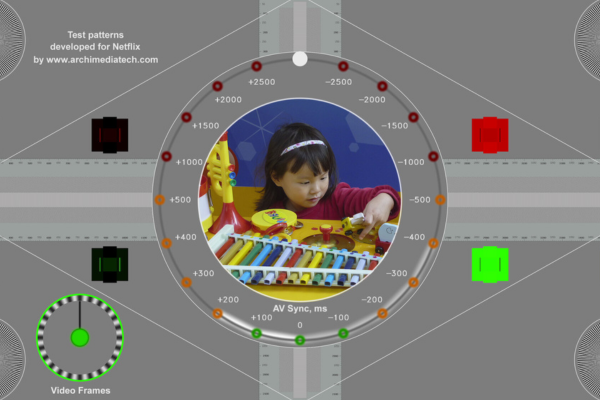
If there’s a device with a disc drive in the system, the trusty old Spears and Munsil and Joe Kane discs have some nice lip sync tests. However, any device with a Netflix app can be turned into a test generator of sorts. Netflix has a title called Test Patterns that offers up a bouncing ball/audio bleep test at various frame rates and audio codecs.
Side note, but there’s also a number of other video tests, such as resolution wedges to make sure you’re getting 4K and audio channel IDs and frequency sweep tests.
Netflix has pared this title down considerably over the years to where it only has a few of the most common frame rates left, and they’ve also made the title harder to find. I know I’m making it sound like Netflix is intentionally trying to hide this title from you, but I actually think that’s true. You can’t find it in search results from the streaming platform interface anymore, and it doesn’t show up in ‘Continue watching’. It seems the best luck people have getting to it these days is to search “Netflix Test Patterns” using a web browser, add the title to My List in the Netflix account, then go to the streaming platform and access My List from there. Even then, you may need to add or remove a title from My List from inside the streaming platform app in order to get Test Patterns to appear in My List! It will then disappear from My List again if you exit and reload Netflix.
Man, doesn’t it seem like Netflix is trying to hide this super useful little tool? Come on, Netflix! What are you so afraid of? Help us out a little…
Some of the streaming platforms, like Fire TV and Shield TV, also have device-level lip sync tests that can be accessed through the settings menu. Be advised, though, that these only test one video codec/frame rate and audio codec – something really common like 1080p SDR 30fps (for US devices; may be different in Australia) and AAC 2.0. That’s a good starting point, but what about 4K HDR 23.98fps and Dolby Atmos? This segues beautifully into the next point…
Frame rate, refresh rate and audio codec
You may not realise it, but streaming platforms must support a myriad of frame rates, refresh rates and audio codecs. Common frame rates include 23.98fps, 24fps, 25fps, 29.97fps, 30fps, 50fps, 59.94fps and 60fps.
For clarification, frame rate refers to the number of images per second in the signal that’s delivered to the streaming platform over the internet. Refresh rate indicates the number of times per second the streaming platform refreshes the image over its HDMI connection to the display, and it also refers to the number of times per second the display flashes the image.
The refresh rate numbers are the same as those above for frame rate; however, refresh rate is more commonly given in Hz rather than fps. So, three different “rates” to consider.
As an example, the frame rate might be 30fps; the streaming platform might refresh this at 60Hz to the display; the display flashes this at 120Hz. This is a simplification, because there are lots of video and cadence processing that happens, but you get the idea. This example is pretty straightforward, but what if the frame rate is 25fps, the refresh rate to the display is 59.94Hz and the display flashes at 120Hz? Yes, I know we’re getting off into the weeds with all this video talk, but keep in mind that something has to keep the audio and video in sync over time, no matter the frame or refresh rate or audio codec. I don’t pretend to know how all of this gets coded inside various devices, but I can observe the result and make note of the fact that most devices get at least some cadences wrong, resulting in cadence (stutter, judder, jumping, skipping, dropped frames, etc.) and lip sync errors.
When you stack a bunch of HDMI devices end-to-end in the signal path, the odds quickly pile up against keeping the picture and sound in sync.
So, what to do? Fortunately, most streaming platforms allow you to adjust the refresh rate to the display and the way various audio codecs are handled. Typically, it’s possible to find a setting that produces the best result based on your specific combination of devices and streaming services. Sometimes this may be the “match frame rate” option, which matches the streaming platform’s refresh rate to the incoming frame rate. Other times, it may be better to have the streaming platform convert every frame rate to the same refresh rate – eg. 50Hz – before sending it over to the display.
The same applies to the audio codec. Sometimes it may work best to use passthrough for audio, where the streaming platform sends the incoming audio bitstream to the HDMI output without touching it. Other times, lip sync may be improved by decoding audio inside the streaming platform and using something like Dolby MAT or uncompressed to ferry audio over HDMI to the AVR or surround processor.
Finally, video processing and/or picture modes in devices such as AVRs, surround processors, switching devices and – especially – displays can affect lip sync due to delays introduced by extended picture processing times. Changing the mode may reduce processing time and fix lip sync errors, at the cost of potentially degrading picture quality somewhat. It’s not a perfect world…
There are a multitude of different settings combinations between the streaming platform, HDMI devices and display; your job is to find the one that works properly, best, or at least better than the others. In the worst-case scenario, each frame rate needs its own setting in order to work properly, and in that case you’re sunk. The client can’t be expected to hunt through settings to find the best one, and you can’t automate the process, either. If the situation has devolved that far with a given system, I recommend trying a different combination of hardware – different streaming platform, display, etc.
HDMI lip sync
Isn’t HDMI supposed to sort all this for you? Yes. I won’t go into the details here, but HDMI does have a lip sync correction system, and it’s about to get a shot in the arm. HDMI 2.2 has Latency Indication Protocol that is supposed to make all of this better.
Will it work in real world applications? Let’s hope so. In the meantime, you can sometimes improve lip sync by turning off the automatic lip sync function in HDMI 2.1 and below. Counterintuitive, I know, but if all this AV stuff was simple and intuitive, clients wouldn’t need you, would they? Good luck!
-
ADVERTISEMENT
-
ADVERTISEMENT
-
ADVERTISEMENT
-
ADVERTISEMENT